Why Is My Laptop Fan Running Loudly Even When Idle?
Your laptop sits quietly on the desk. You are not gaming. You are not editing video. You are just reading an article or checking email.
Yet the fan spins like a tiny jet engine. The noise feels constant, annoying, and a little worrying. You start to wonder if something is broken inside.
The good news is simple. A loud fan at idle is almost always fixable. Most causes are software related or dust related, not a dead motherboard. You can solve many of them yourself in a few minutes. Some fixes need a screwdriver and patience.
In a Nutshell:
- Background processes are the top culprit. Hidden tasks like Windows Update, antivirus scans, or browser tabs keep the CPU busy. A busy CPU gets hot, and heat makes the fan spin faster.
- Dust is the second biggest cause. Over time, dust clogs the vents and fan blades. Trapped heat forces the fan to work harder for the same cooling. A clean fan runs quieter.
- Software settings can control fan speed. Power plans, BIOS fan curves, and free fan apps let you tune how aggressively the fan reacts to heat.
- Old thermal paste reduces cooling. Dried paste between the CPU and heatsink lets temperatures climb. Replacing it often brings big, quiet improvements.
- Surface and airflow matter a lot. A laptop on a bed or blanket cannot breathe. Hard, flat surfaces and a cooling pad help heat escape.
- Not every noise is a problem. Some fan activity is normal and healthy. The goal is to reduce excessive noise, not silence the fan completely.
Why Does a Laptop Fan Run Loud When Nothing Is Happening?
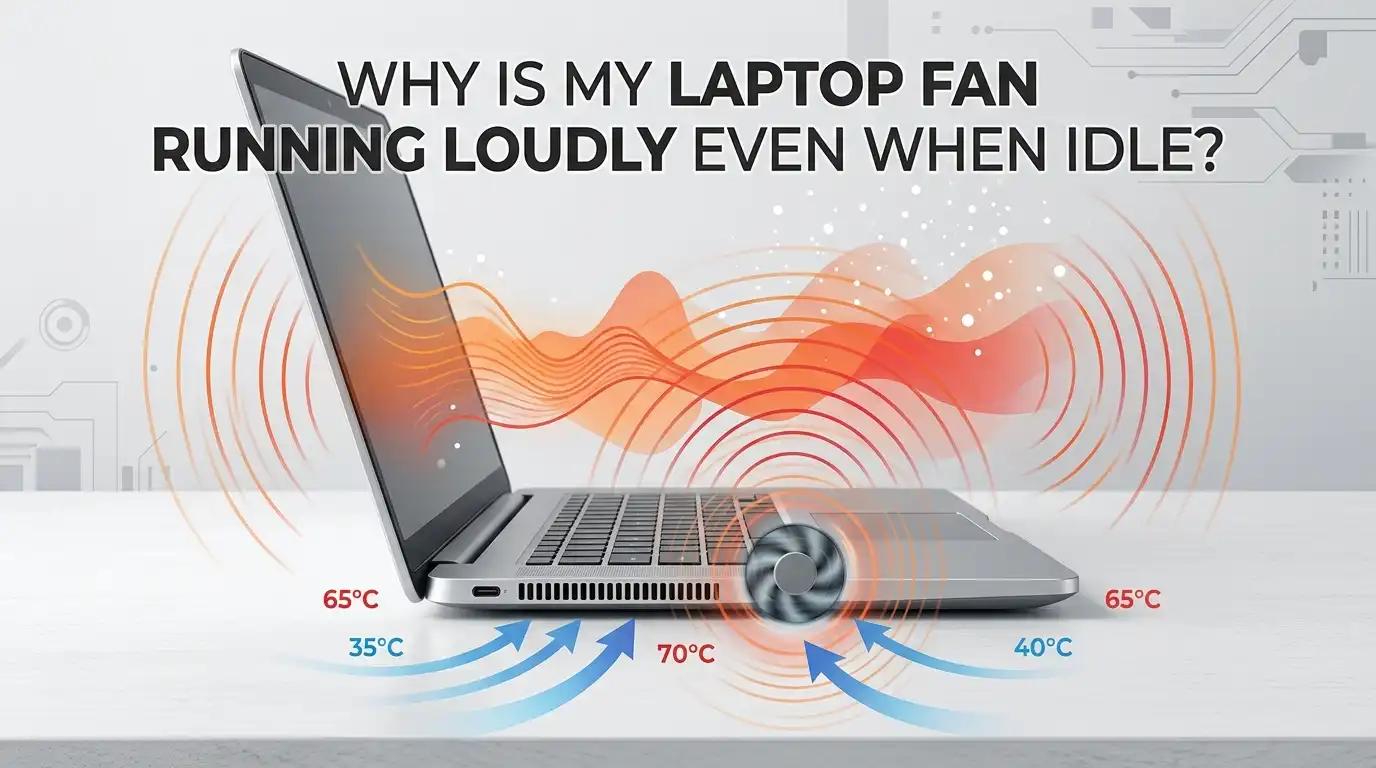
Your laptop fan reacts to heat, not to what you see on screen. The screen may look idle, but the processor may still be busy. The fan speeds up when the CPU or GPU temperature rises past a set point. This is normal protection. It stops the chips from cooking themselves.
The confusion comes from hidden activity. You think the laptop is resting, but it is actually working. Windows runs updates in the background. Antivirus tools scan files. Browser tabs reload content. Each task adds heat.
Dust, bad airflow, and old thermal paste make this worse. They trap heat that should escape. So even a small task makes temperatures spike, and the fan roars. Understanding this link between heat and noise is the key to every fix below. Once you control the heat, you control the sound.
Check Background Processes and CPU Usage First
Start here, because this is the most common cause. Open Task Manager by pressing Ctrl, Shift, and Esc together. Click the Performance tab to see live CPU usage. Then click the Processes tab and sort by CPU.
Look for any process using a large share of the CPU while you are idle. Common offenders include Windows Update, search indexing, antivirus scans, and browser helper processes. Right click a heavy task and choose End task if it is safe to close.
Be careful not to close system processes you do not recognize. When in doubt, search the name first.
Pros: This method is free, fast, and often solves the problem instantly. It needs no tools.
Cons: Ending tasks is only temporary. The process may restart later. You may need to disable startup apps or schedule scans for a better long term fix.
Clean the Vents and Fan to Remove Dust
Dust is a silent enemy. It builds up slowly until the fan struggles to push air. When airflow drops, heat stays inside, and the fan spins faster to compensate. A good cleaning often brings instant, lasting quiet.
First, shut down the laptop and unplug it. Find the air vents, usually on the sides or bottom. Use a can of compressed air in short bursts. Hold the fan still with a toothpick so the blades do not spin too fast and get damaged.
For a deeper clean, you can open the back panel if you feel confident. Blow out the fan blades and the heatsink fins gently.
Pros: Cleaning is cheap and very effective. It can drop temperatures by several degrees and reduce noise a lot.
Cons: Opening the case may void a warranty. Aggressive spraying can damage the fan if you let it spin freely.
Adjust Your Windows Power Settings
Windows power plans control how hard your processor works. A high performance plan pushes the CPU faster, which creates more heat and more fan noise. Switching to a balanced or power saver plan can calm things down quickly.
Open the Settings app, go to System, then Power. Choose a balanced mode if you are plugged in, or a power saver mode on battery. For deeper control, open the classic Control Panel, go to Power Options, and click Change advanced power settings.
Find Processor power management and lower the maximum processor state to around 95 or 99 percent. This small change blocks the CPU from hitting top turbo speeds during light tasks. That alone cuts a surprising amount of heat.
Pros: This fix is free, reversible, and needs no extra software.
Cons: Performance may dip slightly during heavy work. You can switch plans back anytime you need full power.
Update Your Drivers and BIOS
Outdated drivers can confuse your system. A bad graphics or chipset driver may keep the hardware active when it should rest. This raises temperatures and spins the fan for no clear reason. Updating fixes many mystery noise issues.
Visit your laptop maker’s official support website. Enter your model number and download the latest chipset, graphics, and BIOS updates. A BIOS update often improves how the system manages fan curves and power.
Always follow the maker’s instructions carefully during a BIOS update. Keep the laptop plugged in and do not force a shutdown.
Pros: Updates can fix deep control issues that no other method touches. They are free from the maker.
Cons: A BIOS update carries a small risk if interrupted. Sometimes a new update accidentally makes fans louder, so check user reports first and keep the old version noted.
Use Free Fan Control Software
Software can give you direct command over fan speed. Free tools let you build a custom fan curve. This means the fan stays slow at low temperatures and only speeds up when real heat appears. You decide the balance between noise and cooling.
Popular free options include Fan Control for many laptops and Notebook Fan Control for supported models. After installing, you pick a setting that matches your laptop. Then you set the fan to stay quiet until temperatures cross a safe line.
Test your settings and watch your temperatures closely after changing them. Never set the fan too low for hot tasks.
Pros: This gives you the most precise control. You can make an aggressive fan behave gently during idle.
Cons: Not every laptop is supported. Wrong settings can let the system overheat, so you must monitor temperatures and adjust with care.
Replace the Old Thermal Paste
Thermal paste sits between the CPU and the heatsink. It moves heat away from the chip. Over years, this paste dries out and cracks. When that happens, heat transfer drops, temperatures rise, and the fan runs loud even at idle.
Replacing the paste is a deeper repair. You open the laptop, remove the heatsink, wipe off the old paste with isopropyl alcohol, and apply a thin new layer. Fresh paste like a quality compound can lower temperatures by several degrees.
This task suits people who are comfortable taking a laptop apart. If you are unsure, a technician can do it quickly.
Pros: A repaste often produces dramatic, lasting cooling and noise reduction on older laptops.
Cons: It requires disassembly skill and can void a warranty. A poor application can make cooling worse, so go slow and watch a guide for your exact model.
Improve Airflow and Use a Hard Surface
Where you place your laptop changes everything. Soft surfaces like beds, couches, and blankets block the vents. When the intake cannot pull cool air, heat builds fast, and the fan screams to keep up. The fix here is free and instant.
Always use the laptop on a hard, flat surface like a desk or table. This lets air flow under and through the body. If you often use it on your lap, place a firm tray or board underneath.
A laptop cooling pad adds extra airflow with built in fans. It raises the laptop and pushes cool air toward the vents.
Pros: Better airflow is the easiest fix of all. A hard surface costs nothing and helps right away.
Cons: A cooling pad adds its own small fan noise and takes up space. The pad needs a free USB port for power.
Scan for Malware and Unwanted Apps
Sometimes the hidden CPU load is not a normal program. Malware and cryptocurrency miners can run secretly and max out your processor. They generate heat day and night, which keeps the fan loud even when you do nothing.
Run a full scan with Windows Security or a trusted antivirus tool. Let it check the entire drive. Then open Task Manager again and watch for any odd process that returns after you close it.
Also remove junk apps and toolbars you never installed. These often run in the background and waste resources.
Pros: This protects your data and your hardware at once. Removing hidden miners can completely solve a loud fan mystery.
Cons: Full scans themselves use the CPU and make the fan loud for a while. Run them when you do not need the laptop, then enjoy the quiet afterward.
Disable Startup Programs and Reduce Browser Tabs
Many programs launch the moment you turn on your laptop. Each one sits in memory and uses small bits of CPU power. Together they create steady heat that keeps the fan spinning. Trimming this list helps a lot.
Open Task Manager and click the Startup apps tab. Disable any program you do not need at boot, like chat apps, updaters, and game launchers. Right click each one and choose Disable.
Browsers are heavy too. Dozens of open tabs each run scripts and reload content. Close tabs you are not using, and limit extensions you do not need.
Pros: This frees up resources permanently and speeds up boot time as a bonus. It is completely free.
Cons: You must restart some disabled apps manually when you want them. Be sure not to disable important security or driver tools.
Check for a Failing or Faulty Fan
Sometimes the fan itself is the problem. A worn bearing or a loose blade creates noise even at normal speed. You might hear grinding, rattling, clicking, or a buzzing whir that sounds different from a healthy fan. This points to hardware wear.
Listen closely to the sound. A smooth rushing noise usually means the fan is fine but working hard. A harsh rattle or grind usually means the fan needs replacement. Dust trapped in the blades can also cause a wobble.
Try a careful cleaning first, since dust often mimics a failing fan. If the bad sound stays, the fan likely needs replacing.
Pros: Replacing a worn fan fully removes mechanical noise. Fans are usually cheap parts.
Cons: Replacement needs disassembly or a technician. Finding the exact matching fan for your model can take some searching.
Monitor Your Temperatures to Find the Real Cause
You cannot fix what you cannot measure. Temperature monitoring shows you whether the fan is overreacting or doing its job. This step turns guessing into knowing. It tells you if heat is truly the issue.
Install a free monitoring tool that displays CPU and GPU temperatures in real time. Watch the numbers while the laptop sits idle. Healthy idle temperatures usually sit in the low to mid forties Celsius range for many laptops.
If idle temperatures stay high, you have a cooling problem like dust or old paste. If they are low but the fan still roars, the issue is likely software or a faulty sensor.
Pros: Monitoring guides you to the right fix and saves wasted effort. The tools are free.
Cons: Reading the data takes a little learning. Numbers vary by laptop, so compare against your own model’s normal range.
When to Visit a Professional Technician
Some problems sit beyond a simple home fix. If you have tried cleaning, software tweaks, and power settings with no change, deeper hardware may be at fault. A technician has the tools and experience to find it safely.
Visit a professional if the fan grinds loudly, if temperatures stay very high after cleaning, or if you are not comfortable opening the laptop. A pro can replace the fan, repaste the chips, and check the heatsink in one visit.
This is also the safe choice if your laptop is still under warranty. Opening it yourself could cancel that coverage.
Pros: You get an expert fix with the right parts and no risk of damage. It saves time and stress.
Cons: Professional repair costs money and may take a few days. Choose a trusted shop and ask for a quote first.
Frequently Asked Questions
Is it bad if my laptop fan runs constantly?
Not always. A fan that runs steadily but quietly is doing its job. It becomes a concern only when the noise is loud, harsh, or paired with high heat. Check your temperatures and background tasks to judge if it is normal.
Can I damage my laptop by cleaning the fan with compressed air?
You can if you are rough. Hold the fan blades still while you spray so they do not spin too fast. Use short bursts and keep the can upright. Done gently, cleaning is safe and very helpful.
Why is my brand new laptop fan already loud at idle?
New laptops sometimes run background setup tasks for days. Windows Update, indexing, and first time installs all create heat. Driver updates and a balanced power plan usually calm a new machine. If it stays loud, contact the maker, since it is under warranty.
How often should I clean my laptop fan?
For most users, once every six to twelve months works well. Clean more often if you live in a dusty home or keep the laptop on soft surfaces. Regular cleaning keeps temperatures and noise low over time.
Will closing browser tabs really make the fan quieter?
Yes, it often helps. Each tab can run scripts, videos, and ads that load the CPU. Many open tabs add up to real heat. Closing the ones you do not need lowers the load and the fan speed.
Does a cooling pad actually reduce fan noise?
It can. A cooling pad pushes extra air toward the vents and lifts the laptop for better airflow. Lower internal heat means your laptop fan spins slower. The trade off is the small noise from the pad’s own fans.
Should I worry if temperatures stay high after cleaning?
Yes, that points to a deeper issue. Old thermal paste or a failing fan is the likely cause. Reapplying paste or replacing the fan usually fixes it. If you are unsure, a technician can diagnose and repair it safely.

Hi, I’m Sonny Dawson, the creator and voice behind ConvertResizeGen. 👋 I’m a passionate tech enthusiast who loves exploring the latest gadgets, devices, and electronics that shape the way we live and work. Through my website, I share honest, hands-on reviews of trending Amazon products to help you make smarter buying decisions.