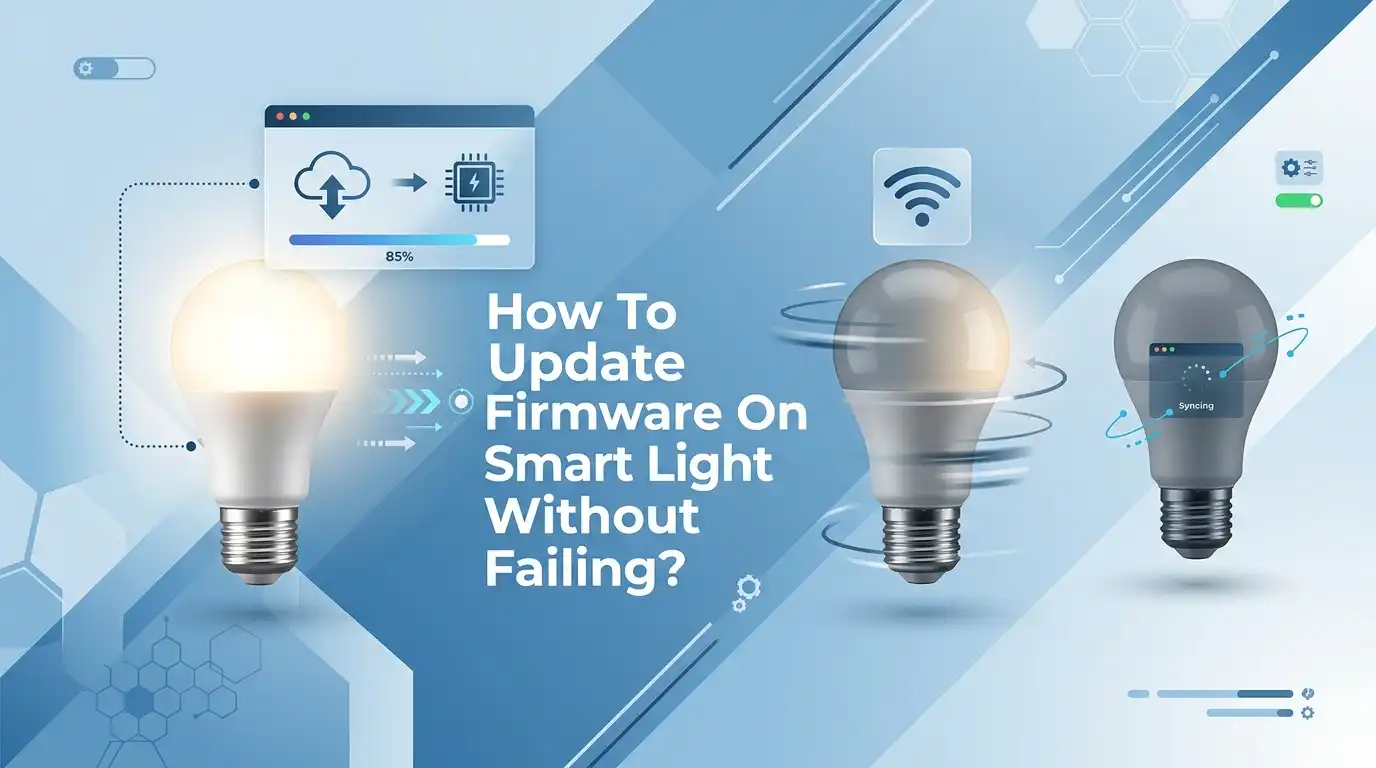
How To Update Firmware On Smart Light Bulbs Without Failing?
Smart light bulbs make your home feel modern and easy to control. You tap your phone, and the lights change color, dim, or turn off. But there is one task that scares many users.
That task is the firmware update. A firmware update sounds simple, yet it can freeze, fail, or even brick your bulb if you rush it. You see a progress bar stuck at 0%, and your heart sinks. You wonder if you just wasted your money.
The good news is that most firmware failures are easy to avoid. You only need to follow the right steps in the right order.
In a Nutshell:
- Stable Wi-Fi is your best friend. Most failed updates happen because the connection drops mid way. Always update while your phone sits close to the router on a strong 2.4 GHz network.
- Never cut the power during an update. If you flip the switch or unplug the lamp while firmware is flashing, the bulb can boot into a broken zombie state. Keep power steady from start to finish.
- Update one bulb at a time. Avoid the tempting “Update All” button. Updating in small batches protects your whole setup from a single bad firmware file.
- Do not spam the retry button. Pressing update over and over after a failure can corrupt the firmware. Try once, watch carefully, then move to recovery if it fails.
- A factory reset usually saves a stuck bulb. Most bulbs that look dead can come back with a long power cycle and a proper reset, then a fresh setup in the app.
- Most smart bulbs need 2.4 GHz Wi-Fi, not 5 GHz. A wrong band is a hidden cause of many failed updates and connection drops.
Why Firmware Updates Matter For Smart Bulbs
Firmware is the small software that lives inside your bulb. It tells the bulb how to talk to your app, your Wi-Fi, and your voice assistant. When the maker improves this software, they release an update. Skipping these updates can leave your bulb slow, buggy, or open to security risks.
Hackers often target old firmware on smart home gadgets. A bulb with outdated software can become a weak door into your whole network. Updates also fix bugs, add new colors or scenes, and improve how the bulb holds its connection.
Think of firmware like the brain of your bulb. A fresh brain works faster and stays safer. So updates are worth doing, even if they feel risky. The trick is doing them the right way, which is exactly what this guide covers next.
Common Reasons Why Firmware Updates Fail
You cannot fix a problem until you know its cause. Most smart bulb firmware updates fail for three clear reasons. Weak or unstable Wi-Fi is the number one cause. When the connection drops while the update file downloads, the app freezes at 0% or shows an error.
The second reason is a power cut during the flash. If someone flips the wall switch or the lamp loses power, the bulb boots into a half updated state. It may stay dim, stuck on one color, or vanish from the app. The third reason is a server glitch on the maker’s side.
Sometimes their cloud is overloaded, so every bulb reports “update failed” until they push a fix. Knowing which cause hit you helps you pick the right recovery step instead of guessing and making things worse.
Check Your Wi-Fi Before You Start
Your Wi-Fi decides if the update lives or dies. Before you tap anything, test your network. Most smart bulbs only work on the 2.4 GHz band, not the 5 GHz or 6 GHz band. Many people fail here without knowing it.
Open your phone settings and confirm you are connected to the 2.4 GHz network. If your router mixes both bands under one name, split them or give the 2.4 GHz band its own name. Then move close to the bulb and the router.
A weak signal in a far room is a common reason updates stall. Run a quick speed test to make sure your internet is stable. Avoid updating during a storm or when many people stream video at home. A calm, strong, 2.4 GHz connection gives your firmware the best chance to finish clean.
Pros of checking Wi-Fi first: it prevents the most common failure and takes only a minute. Cons: splitting Wi-Fi bands can confuse beginners, and some old routers make this step harder than it should be.
Keep The Power Stable During The Update
Power is the silent killer of firmware updates. When firmware flashes onto a bulb, the chip rewrites itself. If power stops during this exact moment, the bulb can brick. This is why power control matters so much.
First, make sure the lamp switch is firmly on and will not be touched. Tell others in the house to leave that light alone. If the bulb sits on a smart plug or a dimmer, bypass it for now. Plug the lamp straight into the wall socket instead.
Smart plugs can cut power at the wrong second and ruin the update. Never start an update if you expect a power outage or a planned router reboot.
The update may take from one to five minutes. During that time, give the bulb steady, uninterrupted power. Patience here saves you from a long recovery process later.
Step By Step Guide To Update Firmware Safely
Now you are ready for the main event. Follow these steps in order, and do not skip any. A calm, slow process beats a fast, careless one every time.
First, open the maker’s official app, like the Hue app, Kasa app, or WiZ app. Second, confirm your phone sits on the 2.4 GHz Wi-Fi near the bulb. Third, find the firmware section, often under Settings, Device Info, or Firmware Version.
Fourth, tap update only once and let it run. Watch the progress bar but do not leave the screen. Wait until it reaches 100% and shows “update complete.” Then test the bulb with the app and a voice command.
Pros of this method: it follows the maker’s safe path and works for most bulbs. Cons: it depends fully on the app, and some apps hide the update button in confusing menus.
What To Do If The Update Gets Stuck At 0% or 99%
A frozen progress bar is scary but not the end. Do not press the retry button many times in a row. Repeated failed flashes can corrupt the firmware and make recovery harder.
Wait at least five minutes first. Some updates look frozen but are still working in the background. If nothing changes, close the app fully and reopen it. Then check if the bulb still shows in your device list.
Try one controlled retry while standing right next to the router. If it climbs slowly and finishes, you are saved. If it jumps straight to “update failed” again, stop.
That means the bulb cannot download or apply the file. At this point, move to a power cycle and reset instead of more retries. Knowing when to stop retrying protects your bulb from real damage.
How To Power Cycle A Stuck Smart Bulb
A power cycle is your first real recovery tool. It is simple and often works like magic. Turn the lamp off at the wall for a full 30 seconds, then turn it back on. This long pause lets the bulb fully reset its memory.
After you turn it back on, leave it on. Wait two to three minutes and watch your app’s device list. Sometimes a failed update boots back into the old firmware after a proper power cycle. If the bulb returns online, you have recovered it without a full reset.
Test it with the app to confirm it responds and remembers its settings. If the bulb stays offline or stuck on “updating,” the power cycle alone was not enough. Do not panic. The next step, a factory reset, brings back most bulbs that still seem dead after this point.
Pros of power cycling: it is fast, free, and risk free. Cons: it does not fix deeper corruption, so you may still need a full reset afterward.
How To Factory Reset Your Smart Bulb
A factory reset wipes the bulb clean and gives it a fresh start. This is the most reliable fix for a stuck update. Most bulbs reset with a pattern of fast on and off toggles at the wall switch.
The common pattern is three to five quick toggles, but brands differ. Some need eight or ten toggles. Check your manual for the exact count. Turn the bulb on for two seconds, then off for two seconds, and repeat.
Watch for a flash, a color change, or a blink that confirms the reset worked. After the reset, open your app and delete the old “ghost” device entry.
Then choose “Add device” and set the bulb up as new on your 2.4 GHz network. The bulb will forget the broken update and run whichever firmware image is still good inside it.
Pros: it recovers most stuck bulbs and clears bad settings. Cons: it erases your scenes and schedules, so you must set them up again.
Updating Bulbs On A Hub Or Bridge System
Some bulbs use a hub instead of talking straight to Wi-Fi. Philips Hue and SmartThings work this way with Zigbee. For these systems, the hub controls the firmware updates, not the bulb directly.
If a hub bulb shows “update failed” or “unreachable,” start with the hub. Unplug the hub for 30 seconds, then plug it back in. Wait until all lights show solid and steady.
Make sure the hub is wired straight into your main router, not a guest network. Guest networks and VLANs often block firmware traffic.
Once the hub is stable, check the app for pending updates and retry only the stuck bulbs. If a bulb stays unreachable, turn it off for ten seconds, then on, and use the reset option to force it back into the mesh.
Pros of hub systems: updates are more stable and run in the background. Cons: a hub firmware glitch can affect many bulbs at once.
Why You Should Update One Bulb At A Time
The “Update All” button looks convenient, but it carries hidden risk. A single bad firmware file can take out every bulb in your home at once. That is why smart users update in small batches.
Start with one less important bulb as a test. Let it reach 100% and confirm it works. Then update two or three more, wait fifteen to twenty minutes, and check them.
If they stay online and respond well, move to the next group. This slow method protects your whole setup. If one update fails, only one bulb is affected, not all of them.
You also learn if a new firmware version has bugs before you spread it everywhere. A little patience here saves you from a house full of dead lights.
Pros: it limits damage and reveals bad updates early. Cons: it takes more time and feels slow when you have many bulbs.
Should You Use Auto Update or Manual Update?
Many apps offer an auto update setting. It applies new firmware on its own, often when the bulb is idle. Auto update keeps you safe with security fixes without any effort. This is great for busy people who forget to check.
But auto update has a downside. It may run when your Wi-Fi is weak or when you are not watching. A failed auto update can leave a bulb stuck without you noticing. Manual update gives you full control over timing and conditions.
You choose a calm moment with strong Wi-Fi and steady power. For most users, manual update is the safer choice if you want zero surprises. If you travel a lot or own many bulbs, auto update saves time. Pick the style that fits your habits, but lean toward manual if a bulb has failed before.
How To Recover A Bulb That Seems Bricked
A bricked bulb is the worst case, but even then hope remains. First, confirm the socket still has power by testing another bulb in it. Rule out simple problems before you assume the worst.
Next, try the longest reset pattern your brand offers. Some bulbs have a deep reset with extra toggles. Then try pairing with only the maker’s official app, not Alexa, Google, or HomeKit.
Keep your phone on the 2.4 GHz network during every attempt. If the bulb still refuses to broadcast a pairing signal, the firmware chip may truly be corrupt. At that point, contact the maker.
Many brands replace a bricked bulb under warranty after a failed firmware update. Keep your receipt and order details ready. A failed update is rarely your fault, and most companies understand this.
Pros: warranty replacement saves you money. Cons: it takes time, and out of warranty bulbs may not qualify.
Best Habits To Avoid Future Update Failures
Prevention beats repair every time. A few simple habits keep your updates smooth for years. Always update during calm hours, not busy evenings when servers are crowded. Late morning or early afternoon often works best.
Keep your app updated too, since an old app can clash with new firmware. Place your router or hub in a central spot for strong signal everywhere.
Avoid running updates right after a brand pushes a big new release, because early versions sometimes have bugs. Wait a few days and check forums for reports of failures. Keep your bulbs reasonably close to the router during any update.
Finally, write down each bulb’s reset pattern so you can act fast if needed. These small habits turn firmware updates from a fear into a simple, routine task you barely think about.
Frequently Asked Questions
Why did my smart light firmware update fail?
Most failures come from weak Wi-Fi, a power cut during the update, or a temporary glitch on the brand’s server. If the connection drops while the bulb downloads or flashes the file, the app shows “update failed” or leaves the bulb stuck on “updating.”
Can a failed firmware update permanently brick my bulb?
It is possible but not common. Most bulbs that seem dead come back with a long power cycle and a full factory reset, then a fresh setup in the app. If the bulb never lights up or broadcasts for pairing after that, contact the maker about a warranty replacement.
How many times should I retry a failed update?
Try only one controlled retry while the bulb sits near your router on stable 2.4 GHz Wi-Fi. Do not press the button many times. If it fails again, move straight to recovery with a power cycle and reset, since repeated retries can corrupt the firmware.
Do smart bulbs need 2.4 GHz or 5 GHz Wi-Fi?
Most smart bulbs only work on the 2.4 GHz band. The 5 GHz and 6 GHz bands have shorter range and are not supported by many bulbs. Always confirm your phone is on 2.4 GHz before you start an update.
How long does a firmware update take?
A typical update takes from one to five minutes. Some hub based updates run longer in the background. Always wait until the app shows “update complete” or 100% before you leave the screen or touch the power.
Should I turn auto update on or off?
Auto update keeps you safe with security fixes without effort, which suits busy users. Manual update gives you control over timing and conditions, which is safer if a bulb has failed before. Choose based on your habits, but lean toward manual after any past failure.

Hi, I’m Sonny Dawson, the creator and voice behind ConvertResizeGen. 👋 I’m a passionate tech enthusiast who loves exploring the latest gadgets, devices, and electronics that shape the way we live and work. Through my website, I share honest, hands-on reviews of trending Amazon products to help you make smarter buying decisions.