How To Fix Action Camera Overheating While Recording 8K Video?
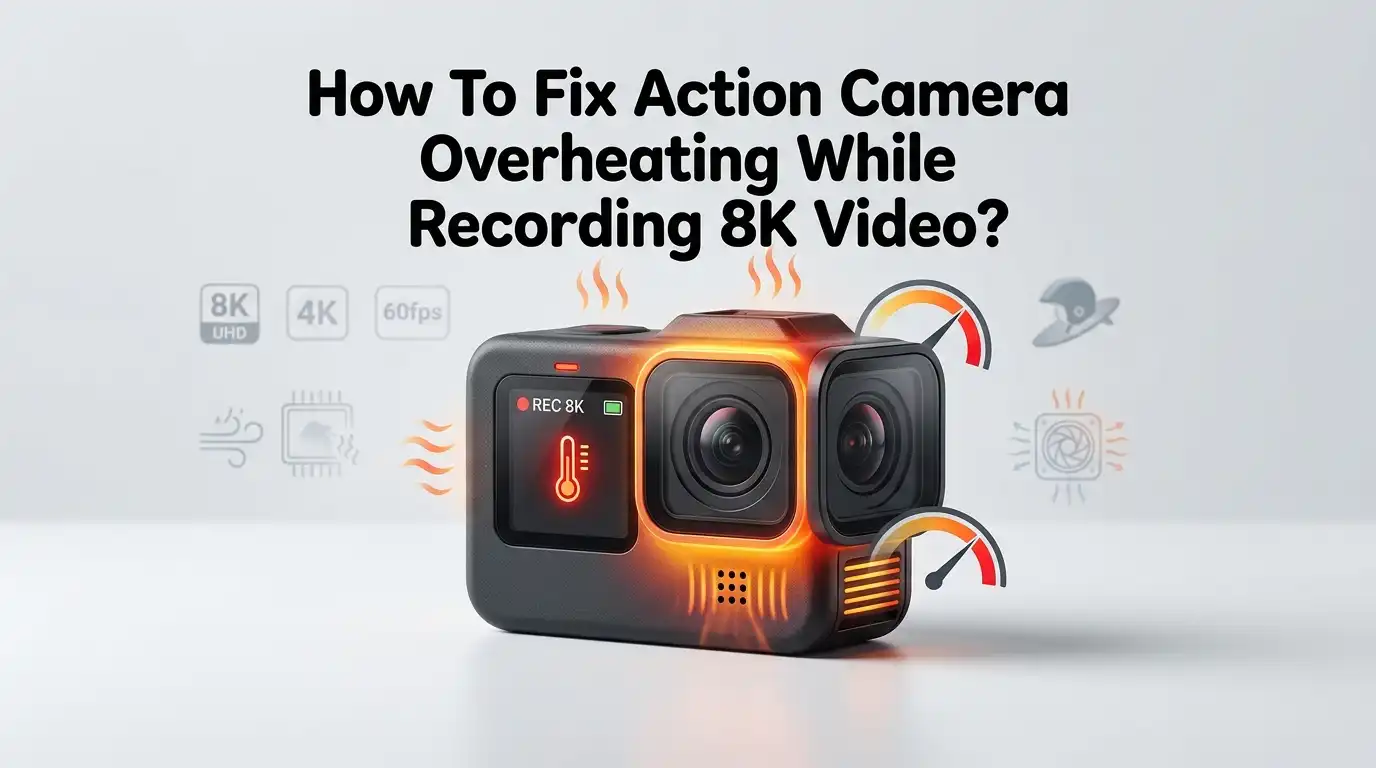
Recording in 8K on a tiny action camera feels like magic. The footage looks crisp, the colors pop, and every frame is packed with detail. But there is one annoying problem that ruins the fun. Your camera gets hot, flashes a warning, and shuts down before you finish your shot.
This issue is common across every popular brand, including GoPro, Insta360, and DJI Osmo. The reason is simple. 8K recording pushes the processor and image sensor to their limits. Heat builds up fast inside the small body, and the camera has nowhere to release it.
The good news is that you can fix this. You do not need to send the camera back or stop shooting in 8K.
In a Nutshell
- Heat is the main enemy of 8K recording. Action cameras have small bodies, dense components, and limited airflow. The processor works much harder in 8K than in 4K, which raises the internal temperature very quickly during long takes.
- External cooling fans are the most reliable fix. Clip on fans with silicone cages improve airflow around the camera body. They lower surface temperature by several degrees and can extend recording time by 30 to 60 minutes in many cases.
- Power and battery choices matter a lot. Removing the internal battery and powering the camera through a USB cable from a power bank reduces internal heat. The battery is one of the biggest heat sources inside the device.
- Settings tweaks help even without accessories. Turning off the screen, disabling Wi-Fi, lowering the bitrate, and switching to a cooler frame rate like 8K24 instead of 8K30 can give you noticeably longer clips.
- Environment plays a huge role. Direct sunlight, hot cars, and still air make overheating worse. Shade, breeze, and lower ambient temperature are free fixes that most users forget about.
- Firmware updates often patch heat issues. Brands push thermal improvements through software, so always check for updates before a big shoot.
Why 8K Recording Overheats Action Cameras So Quickly
The first step is understanding the cause. 8K video has four times the pixels of 4K. The image processor inside your camera must read, compress, and write that data many times per second. This task burns through power and creates heat as a byproduct.
Action cameras are built small for a reason. They mount on helmets, drones, and chest harnesses. Their tiny size leaves no room for big heat sinks or cooling fans. The metal body tries to act as a radiator, but it can only do so much.
When the internal sensor reaches around 70 to 80 degrees Celsius, the camera triggers a shutdown to protect the chips. This is normal safety behavior. Your goal is to keep the temperature below that limit by removing heat or producing less of it.
Update Firmware Before You Try Anything Else
Before you spend money on accessories, check your firmware version. Brands like GoPro, Insta360, and DJI release thermal patches often. These updates change how the camera manages voltage, fan speed if available, and recording limits.
Open your camera app on your phone and look under settings for a firmware update option. If an update is available, install it on a full battery. Do not interrupt the process or you may brick the camera.
After updating, restart the camera and test 8K recording again. Many users report that simple firmware fixes added 10 to 20 minutes of extra recording time. This solution is free and takes only a few minutes.
Pros of firmware updates include zero cost, easy installation, and possible bug fixes beyond heat. Cons include the small risk of new bugs, the need for a full battery, and the fact that it may not fully solve the problem on its own.
Use an External Cooling Fan or Clip On Cooler
A clip on cooling fan is the single most effective accessory for fighting overheating. These small fans attach to the back or side of the camera and blow air across the body. Some models use silicone cages that hold the camera tight without blocking the lens.
To use one, charge the fan, clip it onto the camera, and turn it on before you start recording. Many fans have two or three speed settings. Start on medium and switch to high if the camera still feels warm.
Independent tests show clip on fans can extend 8K recording from around 20 minutes to over an hour. The fan adds a bit of noise, but most action footage uses background music or wind, so it rarely matters.
Pros include strong cooling power, simple setup, and reusable battery designs. Cons include extra weight on a helmet mount, fan noise on the audio track, and the need to charge another device before each shoot.
Power the Camera Through USB Instead of the Battery
The internal battery is one of the biggest heat sources inside any action camera. Lithium cells warm up while they discharge, and that heat goes straight into the body. Removing the battery and powering the camera through USB cuts a major heat source.
To do this, open the battery door, take the battery out, and plug a USB-C cable into the camera. Connect the other end to a power bank or wall charger. Make sure the power source can deliver enough watts, usually 5V at 2A or more.
This trick is popular among GoPro users running long timelapses or live streams. It works best when the camera is mounted on a tripod or fixed rig. You cannot use this method while moving, since the cable gets in the way.
Pros include big drops in internal temperature, unlimited recording time, and no extra heat from charging. Cons include reduced mobility, the need for a separate power bank, and the fact that some camera bodies may not seal against water with the door open.
Lower the Frame Rate or Switch to a Smarter Codec
If you do not need 8K30, try 8K24. That small change reduces processor load by about 20 percent. The footage still looks cinematic, and many filmmakers prefer 24fps for the natural motion blur.
You can also switch from H.265 to H.264 if your camera offers a choice. H.265 compresses better but works the chip harder. A lower bitrate also means less heat, since the encoder writes fewer bits per second.
Open your camera settings and look for video encoding or codec options. Test a short clip at the new setting to confirm the quality matches your needs. Some cameras hide these choices under a Pro or Expert mode.
Pros of this method include zero cost, instant results, and longer battery life. Cons include slightly lower image quality at very low bitrates and less smooth motion if you drop the frame rate too far.
Keep the Camera Out of Direct Sunlight
Sunlight is silent fuel for overheating. A black or dark gray camera body absorbs heat from sunlight even when the camera is off. On a hot day, the body can reach 50 degrees Celsius before you press record.
Use a small shade, an umbrella, or your hand to block direct rays during setup. If you mount the camera on a vehicle, park in the shade between takes. A simple white cloth draped loosely over the camera between shots can drop body temperature by 10 degrees or more.
You can also buy or 3D print a sunshade that clips onto the lens housing. These shades cover the top of the camera while leaving the lens clear. They work well for static shots like interviews, vlogs, or wildlife stakeouts.
Pros include zero or low cost, easy setup, and protection from glare. Cons include extra gear to carry and limited use during fast action shots where the shade can fall off.
Turn Off the Screen, Wi-Fi, and Other Background Features
Every running feature creates a little heat. The rear LCD, the front preview screen, Wi-Fi, Bluetooth, and GPS all draw power. When you record 8K for a long time, these small drains add up to a real temperature rise.
Open the quick settings and switch off the Wi-Fi and Bluetooth. Dim the screen to the lowest level or turn it off completely once recording starts. Most cameras let you set the screen to sleep after 30 seconds, which is enough to frame your shot.
Disable voice control too, since the microphone array stays active when this feature is on. GPS can be left off unless you specifically need location data in your footage.
Pros include longer battery life, lower heat, and faster boot times. Cons include the need to use the physical buttons more, and you cannot monitor the shot remotely from your phone.
Add Improved Airflow With a Vented Mount or Frame
The standard plastic frame that comes with many action cameras traps heat. It wraps tightly around the body and blocks air from touching the metal sides. Switching to a vented or skeleton frame helps a lot.
Look for aftermarket frames with open sides and large cutouts. Some are made of aluminum, which acts as an extra heat sink. Slide the camera into the frame, lock it, and mount as usual. The exposed metal body releases heat much faster into the surrounding air.
You can also raise the camera off hot surfaces with a small riser mount. A camera resting flat on a hot dashboard heats up far faster than one held a few centimeters above it.
Pros include passive cooling, no batteries needed, and better grip on rough mounts. Cons include slightly less protection from drops and the risk of dust entering through open vents.
Record in Shorter Clips Instead of One Long Take
Sometimes the simplest fix works best. Instead of one long 30 minute take, record three 10 minute clips with short breaks in between. The breaks give the camera time to cool down naturally.
Set a timer on your phone or use the camera’s interval recording feature. Stop recording, let the body cool for two to three minutes, then start again. You can join the clips later in your editor without losing quality.
This method works great for events, sports, and travel vlogs where short cuts are normal anyway. It is less useful for live performances or single take cinematic shots.
Pros include no extra gear, full image quality, and longer overall shoot time. Cons include the risk of missing a moment during the cool down and extra editing work to stitch clips.
Use a Cool Environment and Avoid Hot Cars
Ambient temperature matters more than people think. A camera that runs fine at 20 degrees Celsius may shut down within minutes at 35 degrees. Hot cars, beach sand, and rooftops in summer are common trouble zones.
Store your camera in a cooler bag with a soft ice pack between shots. Do not place it next to other warm electronics like your phone or laptop. A breeze from a small handheld fan or even a folded paper fan can lower body temperature noticeably.
If you shoot indoors, point an air conditioner vent or a desk fan toward the camera. For outdoor shoots, plan your most demanding 8K takes for the cooler parts of the day, like early morning or late afternoon.
Pros include free cooling, longer battery life, and better image quality, since hot sensors create more noise. Cons include limited control over weather and the inconvenience of carrying cooling bags.
Apply Thermal Pads or Heat Sinks Carefully
For advanced users, small adhesive heat sinks can help. These are the same copper or aluminum pads used on computer chips and mini PCs. You stick them on the back panel of the camera, where most heat escapes.
Clean the surface first with a soft cloth. Peel the backing off the thermal pad and press it firmly onto the flat metal area. Do not cover the lens, microphone holes, or status LEDs.
Heat sinks work passively, so they need airflow to do their job. Combining them with a small fan gives the best results. Some users report 5 to 10 degrees of cooling from this method alone.
Pros include cheap parts, no battery use, and silent operation. Cons include sticky residue when removed, the risk of voiding your warranty, and limited cooling without airflow.
Know When to Stop Pushing 8K and Choose 5.3K or 4K
Sometimes the smartest fix is choosing the right tool for the job. 8K is amazing for cropping, reframing, and future proof archives, but most viewers watch on 1080p or 4K screens. Dropping to 5.3K or 4K60 still gives stunning results with far less heat.
If your shoot involves long takes, fast action, or hot weather, plan for a lower resolution from the start. You will get more reliable footage and fewer overheating shutdowns. A finished 4K clip is always better than a half recorded 8K clip.
Use 8K only for the moments that truly need it, like a hero shot, a slow motion crash, or a wide landscape you plan to crop later.
Pros include longer recording, less storage use, and faster editing. Cons include lower detail and less flexibility in post production.
FAQs
Is it safe to keep using my action camera after it overheats?
Yes, modern cameras shut down to protect their chips. Let the camera cool fully before turning it on again, ideally for 15 to 20 minutes. Repeated overheating over years can shorten battery life, but a few shutdowns will not damage the device.
Can I put my action camera in the fridge to cool it down faster?
No, this is not safe. Fast cooling causes condensation inside the lens and on the sensor. Moisture can damage the electronics and ruin your shots. Use shade, a fan, or a cool dry room instead.
Do waterproof housings make overheating worse?
Yes, sealed housings trap heat with no airflow. Use the housing only in water, which actually cools the camera through the case. On land, remove the housing or use a vented frame to let heat escape.
Will a bigger memory card help reduce overheating?
Card speed matters more than size. A slow card forces the camera to buffer data, which raises heat. Use a high speed V30 or V60 rated card to keep writes smooth and heat low.
How long should I expect to record in 8K before overheating?
Most current action cameras manage 20 to 40 minutes of 8K recording at room temperature. With a cooling fan and USB power, you can push that to 90 minutes or more. Hot weather cuts these times in half.

Hi, I’m Sonny Dawson, the creator and voice behind ConvertResizeGen. 👋 I’m a passionate tech enthusiast who loves exploring the latest gadgets, devices, and electronics that shape the way we live and work. Through my website, I share honest, hands-on reviews of trending Amazon products to help you make smarter buying decisions.