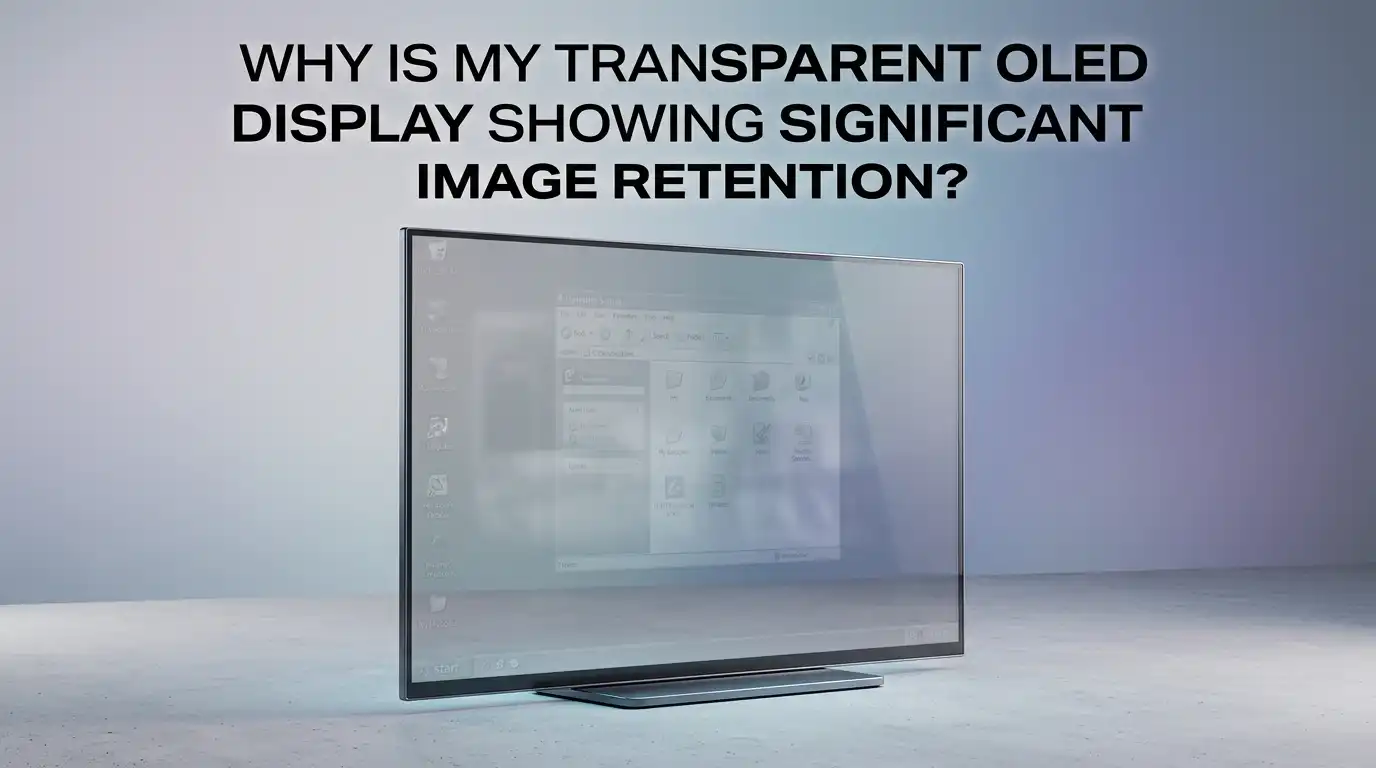
Why Is My Transparent OLED Display Showing Significant Image Retention?
You walk into your retail store one morning and notice something odd. A faded logo floats like a ghost on your beautiful transparent OLED display.
The screen that once made your products look magical now carries a stubborn afterimage. You did not expect this. You invested in premium technology to wow your customers. Now you are worried and perhaps a little frustrated.
The good news is that most cases are temporary and reversible. Even better, you can take clear, simple steps to prevent the problem from happening again. This post will walk you through every practical solution.
Key Takeaways
- Image retention is usually temporary. A ghostly afterimage on your transparent OLED does not always mean permanent damage. In most situations, it fades after you change the content or run a built-in refresh cycle.
- Transparent OLED pixels degrade differently. Each pixel creates its own light. Static white or blue elements on a black background wear those specific pixels faster. This uneven wear causes the ghosting effect you see.
- Content design is your strongest shield. Keep at least 75 percent of your screen dark or black at all times. Avoid showing fixed logos, text boxes, or menus for more than a few hours continuously.
- Built-in maintenance tools work. Pixel shifting, automatic brightness limiting, and pixel refresh cycles are not optional extras. They are essential routines that balance pixel wear and clear up retention.
- Environmental control matters greatly. High heat, direct sunlight, and humidity above 60 percent speed up organic material breakdown inside your transparent OLED panel. Keep the display in a cool, ventilated space away from windows.
- Prevention is always cheaper than replacement. Once true burn-in sets in, you cannot reverse it. The organic compounds inside the pixels suffer permanent physical change. The steps in this guide help you avoid that point entirely.
Understand the Difference Between Image Retention and Permanent Burn-In
The first step to solving any problem is knowing what you are dealing with. Many people use the terms image retention and burn-in as if they mean the same thing. They do not. Image retention is a temporary ghost image that appears after a static picture stays on screen for a while.
It fades within minutes or hours once you change the content or turn off the display. The pixel compounds experience a short-term electrical charge imbalance. Think of it like a faint shadow that disappears when the lights shift.
Permanent burn-in is different. Burn-in happens when organic pixel materials physically degrade after thousands of hours of uneven use. The affected pixels become dimmer than their neighbors. You will see a lasting discolored patch or logo outline that never goes away.
According to manufacturer guides, white or blue static elements on a black background can cause visible burn-in in as few as 300 hours under worst-case conditions. With moderate brightness and moving content, the same display can last over 30,000 hours.
Pros of understanding this difference: You avoid unnecessary stress. You can choose the correct fix. You stop wasting time on solutions that do not match your actual problem.
Cons of confusing the two: You might ignore early retention until it becomes permanent. Or you might overreact and replace a perfectly fixable display.
Run a Manual Pixel Refresh Cycle Immediately
Your transparent OLED display comes with a powerful built-in tool. It is called a pixel refresh or compensation cycle. Think of it as a calibration routine. The processor inside your display measures the voltage characteristics of every pixel.
It then adjusts the current flowing to worn pixels so that their brightness matches the rest of the screen. This process clears temporary image retention remarkably well.
Most manufacturers schedule an automatic short refresh after every four hours of cumulative use. The cycle runs silently when the display enters standby mode. But when you spot obvious ghosting, you should run a manual refresh right away.
Open your display settings menu. Look for options labeled Panel Refresh, Pixel Refresher, Screen Optimization, or OLED Care. Select the manual option and let it complete fully. Do not unplug the display during this process. It typically takes five to ten minutes.
Pros: This method is free. It is built into your hardware. It often clears retention completely. No external tools or software are needed.
Cons: Running full pixel refreshes too frequently can stress the panel. Sony advises against performing the deep cleaning variant more than once a year. Stick to the standard refresh unless the problem persists.
Adjust Brightness Settings for Long-Term Health
Transparent OLED pixels wear out faster when they run at maximum brightness. Higher brightness means more electrical current flowing through each organic diode.
More current generates more heat. More heat speeds up the natural degradation of the carbon-based compounds inside the pixel. This simple chain reaction explains why lowering your brightness protects your display.
Find your panel brightness or OLED light setting. Lower it to around 50 to 60 percent for everyday use. You do not need 500 nits of peak luminance to make your transparent screen look stunning.
The deep blacks of OLED technology create incredible contrast even at moderate brightness levels. Your eyes will adjust quickly. In fact, many users report less eye strain at reduced brightness settings.
Enable adaptive brightness if your model offers it. This feature uses ambient light sensors to automatically dim the screen in darker rooms. It also prevents the display from blasting at full power in bright environments for extended hours.
The result is balanced pixel wear across the entire panel surface. You extend the useful life of your display by months or years with one simple slider adjustment.
Pros: Immediate reduction in pixel stress. Lower power consumption. Less heat output. Better visual comfort in dim environments.
Cons: The display may look less punchy in very bright retail spaces. You might need to adjust brightness seasonally as ambient light changes. Some automatic brightness algorithms react too aggressively.
Design Content That Fights Image Retention
This is the most overlooked solution. The way you design your content directly controls how fast your transparent OLED ages. Remember a fundamental rule of this technology.
Black pixels are off pixels. They consume zero power and emit zero light. They are also transparent, which is the whole point of a see-through display. The more black space you use in your content, the longer your pixels last.
Aim for at least 75 percent black or dark transparent areas on your screen at all times. Avoid placing bright white logos or static text in the same position for more than a few hours.
Rotate your digital signage every seven to ten minutes if possible. Use dynamic motion elements instead of fixed banners. Full-screen video with naturally dark cinematic scenes works far better than brightly lit cartoon-style animations.
Pros: This costs nothing to implement. It preserves the unique transparency effect that makes your display special. Good content design also improves viewer engagement.
Cons: You may need to retrain your design team. Existing static assets might need complete rework. Rapid content rotation requires more creative planning.
Turn On Pixel Shift and Logo Luminance Adjustment
Your transparent OLED display has hidden guardian features. They work silently in the background. Pixel shift is one of them. This feature moves the entire image by two to four pixels every few minutes.
The movement is so subtle that your audience will never notice. But those small shifts distribute pixel wear across a slightly larger area. A static logo that sits exactly on pixels A1 through A100 now also uses A101 through A104 cyclically. This spreads the stress and delays visible retention.
Logo luminance adjustment is another powerful ally. Your display processor detects bright, static elements on the screen. It then dims only those specific areas while leaving the surrounding content untouched.
If you have a channel logo or a fixed price tag icon glowing in one corner, this feature automatically reduces its brightness by 20 to 30 percent. The overall picture quality remains excellent, but the high-risk zone gets crucial protection.
Pros: Fully automatic. No user intervention needed after setup. Effective for both commercial signage and interactive kiosk applications.
Cons: Extremely sharp-eyed viewers might notice a one-pixel shift on fine text. Logo dimming can sometimes flag legitimate bright design elements. The effect is minor and well worth the trade-off.
Avoid Displaying Static Images for Extended Periods
This advice sounds obvious. Yet it remains the number one cause of transparent OLED image retention in commercial settings. Store displays often run the same welcome message, price list, or product logo for twelve hours straight.
Museums show the same artifact description all day. Corporate lobbies project the same company mission statement from morning to evening. Each hour of static content pushes your pixels closer to permanent fatigue.
Set a simple rule. No static element stays on screen for more than two hours continuously. Program your content management system to swap slides automatically. Insert short black transition screens between content changes.
These black intervals give all pixels a moment of complete rest. If your setup relies on a connected PC, set a screen saver to activate after five minutes of inactivity. Choose a blank black screen saver rather than a slideshow. Black means zero pixel activity.
Pros: Simple rule with massive protective impact. Easy to automate with scheduling software. Costs nothing extra.
Cons: May conflict with client requirements for persistent branding. Requires staff training and enforcement. Some legacy content players lack auto-scheduling features.
Keep Your Display Firmware Updated
Your transparent OLED display is a smart device. It runs on software. Manufacturers regularly release firmware updates that improve how the panel manages pixel wear. Newer firmware versions often include refined compensation algorithms.
These algorithms measure pixel aging more accurately and adjust current distribution with better precision. An update might add new dimming triggers or improve how pixel shift operates under different content conditions.
Check your manufacturer’s support website every three months. Download the latest firmware for your exact model number. Follow the update instructions carefully. Most displays accept firmware via USB drive.
Some newer models support over-the-air updates directly through a network connection. Never interrupt the update process once it starts. A failed firmware flash can leave your display in an unusable state.
Pros: Free performance improvements. Better pixel management without manual effort. Potential bug fixes for other display issues.
Cons: Updates occasionally introduce new interface changes. The process requires some technical confidence. Very old models may no longer receive support.
Control the Physical Environment Around Your Display
Temperature and humidity directly impact transparent OLED lifespan. These displays use organic materials that are sensitive to environmental stress. Operating temperatures above 25 degrees Celsius accelerate the breakdown of light-emitting compounds.
Humidity levels above 60 percent relative humidity promote oxidation of the cathode layers inside constantly lit pixel areas. Both factors shorten the time before image retention becomes permanent burn-in.
Position your display away from direct sunlight. Sunlight carries infrared heat that raises panel temperature even when the screen itself is off. Install the display in a space with good air circulation. Avoid tight enclosures that trap heat.
If your installation sits inside a display case or exhibition box, add small ventilation fans or vent holes. Maintain the ambient room temperature between 20 and 24 degrees Celsius. Keep relative humidity between 45 and 55 percent.
Pros: Protects all electronic components, not just the OLED panel. Reduces overall maintenance frequency. Extends warranty validity by following manufacturer guidelines.
Cons: Requires monitoring equipment like thermometers or hygrometers. May limit installation location options in older buildings. Ventilation modifications can add setup cost.
Use Dark Mode and Black Backgrounds Whenever Possible
This tip applies most directly to transparent OLED monitors connected to computers or interactive kiosks. Dark mode inverts the typical white-background user interface. Menus, file explorers, and settings screens become dark gray or black with light text.
On a transparent OLED, dark pixels are off pixels. They draw no power and generate no wear. Using dark mode across your operating system and applications dramatically reduces the total active pixel count.
Enable dark mode in Windows, macOS, or your Linux distribution. Switch all supported applications to their dark themes. For web-based content, use browser extensions that force dark mode on websites.
Pros: Reduces pixel wear significantly and costs nothing. Improves the visual impact of transparent content. Saves energy.
Cons: Some legacy applications do not support dark mode well. Certain brand guidelines require white backgrounds. Reading long text on dark backgrounds can cause eye strain for some users.
Schedule Regular Rest Periods for Your Display
Your transparent OLED works hard. Give it scheduled breaks. Turning off the display for 15 minutes every few hours allows the organic pixel layers to cool and recover. During the off period, residual electrical charges dissipate.
Small thermal hotspots spread out and equalize. The panel’s built-in compensation circuitry also performs background diagnostics that are impossible during active use.
Program your content management system to insert blackout periods. A retail store display can go dark for 15 minutes during staff breaks or after closing hours.
A museum exhibit can power down between visitor sessions. Even a corporate lobby screen can rest during lunch hours when foot traffic is low. These short breaks extend the overall calendar life of your panel by reducing cumulative thermal stress.
Do not unplug the display immediately after turning it off. Leave it in standby mode for at least 30 minutes. Many transparent OLED models run automatic pixel refresh cycles during standby.
Pros: Simple to schedule and automate. Reduces power bills. Gives internal components time to cool. Enables automatic maintenance routines.
Cons: Some venues require around-the-clock display operation. Scheduled blackouts may conflict with 24-hour business models. Requires coordination with facility management.
Clean Your Screen Gently and Regularly
Dust, fingerprints, and smudges do not directly cause image retention. But they create an indirect problem. A dirty screen forces you to increase brightness to maintain perceived image clarity. Higher brightness means more pixel stress.
More stress means faster retention and eventual burn-in. Keeping your transparent OLED clean lets you run the panel at lower, safer brightness levels while still looking crisp.
Always use a clean, dry microfiber cloth. Transparent OLED panels have special anti-reflective coatings that harsh chemicals can strip away. Never use alcohol-based cleaners, ammonia-based glass sprays, or paper towels.
Lightly dampen the cloth with distilled water if you need to remove stubborn oil smudges. Wipe gently without applying pressure. Place one hand behind the display to steady it and prevent flexing.
Pros: Maintains premium appearance. Reduces brightness demands on pixels. Prevents permanent coating damage. Extends overall display aesthetics.
Cons: Requires staff time and attention. Risk of scratching if wrong cloth materials are used. Water damage possible if liquid drips into display edges.
Consider Professional Calibration for Tiled Arrays
Transparent OLED video walls present a unique challenge. Each panel in a tiled array ages at a slightly different rate based on its individual content exposure. One panel might show a news ticker all day while its neighbor displays mostly dark background.
Over months, luminance differences become visible across the seam. What looks like image retention on one panel may actually be relative brightness variation against the adjacent unit.
Professional calibration uses specialized colorimeters and software to measure the output of every panel. The technician adjusts white balance, gamma curves, and peak luminance so all units match.
Some calibration services also run extended compensation routines that manufacturers reserve for trained installers. The result is a uniform image that hides minor retention artifacts and presents a seamless viewing experience.
Pros: Restores uniform brightness across all panels. Hides minor retention in individual units. Optimizes color accuracy for brand-critical content.
Cons: Requires professional equipment and expertise. Adds recurring maintenance cost. Downtime needed during calibration sessions.
FAQs
Why does my transparent OLED show ghost images after I change the content?
Ghost images appear because the pixels that displayed the previous static content experienced temporary electrical stress. The organic compounds hold a faint charge imbalance that takes time to dissipate. This is image retention, not permanent burn-in. Run a pixel refresh cycle or display full-screen moving content for 30 minutes. The ghost image should fade completely.
How long does a transparent OLED display last before burn-in becomes visible?
With proper content rotation and moderate brightness, a transparent OLED panel can last over 25,000 hours before noticeable burn-in develops. High-contrast static content like white logos on black backgrounds can cause visible burn-in in as few as 300 to 1,000 hours. The key variable is how you manage brightness and static image duration.
Can I use a screen saver on my transparent OLED commercial display?
Yes, and you absolutely should. A blank black screen saver activates after a period of inactivity and turns off all pixels entirely. This gives the organic material time to rest and cool. Avoid screen savers with bright moving logos. The goal is to give as many pixels as possible a complete rest state.
Does dark mode really help prevent image retention on transparent OLED?
Dark mode helps significantly because it replaces bright white interface backgrounds with dark gray or black. On a transparent OLED, black pixels are completely off. They generate no heat and consume no power. This reduces the total active pixel count by a large margin during everyday operation, slowing overall panel wear.
Is image retention covered under the manufacturer warranty?
Most transparent OLED warranties do not cover image retention or burn-in caused by user content choices. Manufacturers classify this as usage-related damage rather than a product defect. Always read your warranty terms carefully. Some premium commercial display warranties include limited burn-in coverage. Ask your dealer before purchasing.
Should I turn off my transparent OLED display every night?
Turning off your display at night is a good practice. It gives pixels a long rest period and allows internal compensation cycles to run. However, do not physically unplug the display from power. Leave it in standby mode so the automatic pixel refresh routine can complete. Unplugging interrupts this critical maintenance.

Hi, I’m Sonny Dawson, the creator and voice behind ConvertResizeGen. 👋 I’m a passionate tech enthusiast who loves exploring the latest gadgets, devices, and electronics that shape the way we live and work. Through my website, I share honest, hands-on reviews of trending Amazon products to help you make smarter buying decisions.