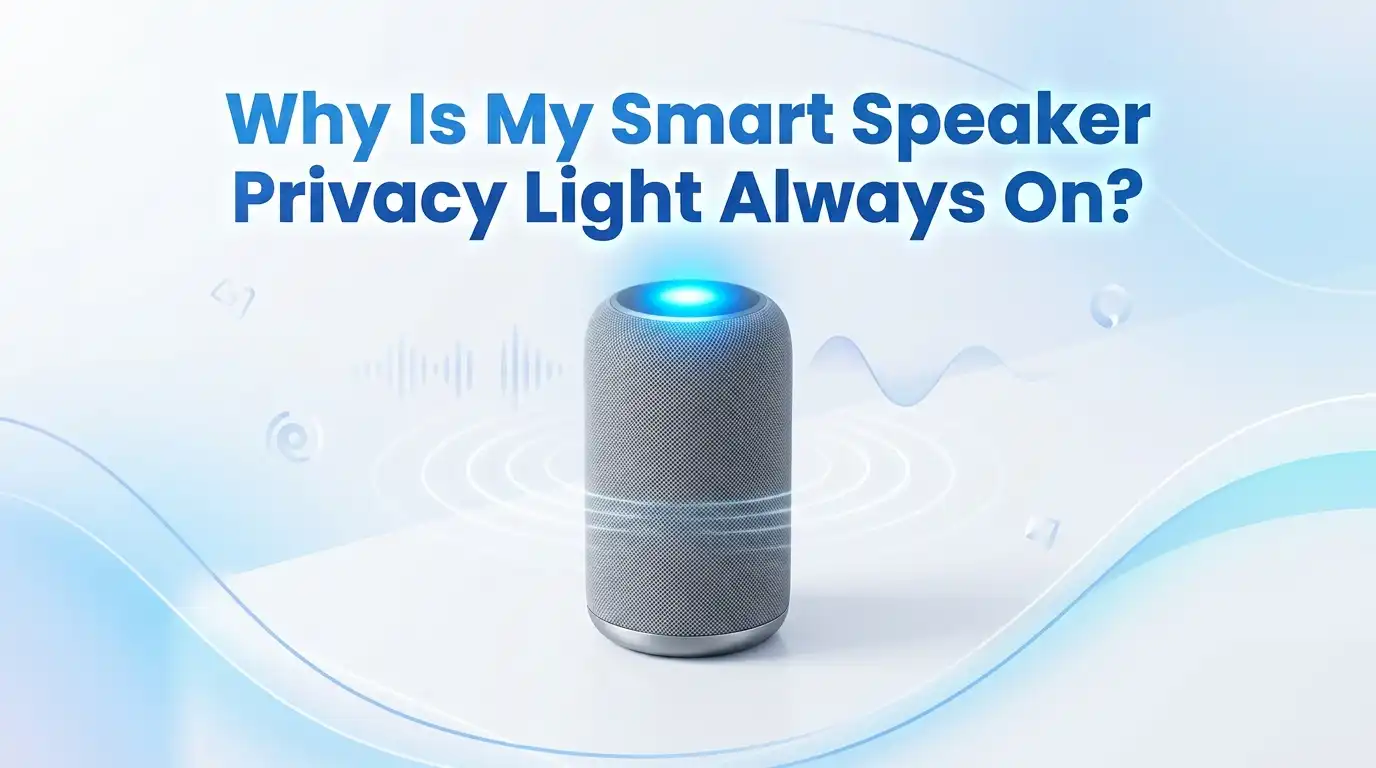
Why Is My Smart Speaker Privacy Light Always On?
Your smart speaker sits quietly on the shelf. Then you notice it. A little light glows without stopping. Blue, yellow, green, red, or orange, it just stays on. Your first thought is usually the same. Is this thing listening to me right now?
That worry is normal. A glowing light feels like a warning sign. But most of the time, the light has a simple reason behind it. Some lights protect your privacy on purpose. Others point to a notification, a setting, or a small glitch you can fix in seconds.
This guide breaks down every color and every cause. You will learn what each light means. You will get clear, step by step fixes for Amazon Echo, Google Nest, and other popular speakers.
Key Takeaways:
- A solid light is not always spying. Many privacy lights turn on by design to show the microphone or camera state. Some lights, like the Nest camera indicator, cannot be turned off at all for safety reasons.
- Color tells the story. Red usually means the mic is muted. Yellow often means you have a notification. Green points to a call. Blue means Alexa is active or thinking. Orange signals a Wi-Fi or setup issue.
- Notifications are the top cause. A pulsing yellow or spinning light often just means an unread message. A quick voice command clears it fast.
- Simple resets solve stuck lights. A power cycle fixes most frozen light rings. A factory reset handles the stubborn cases.
- You control your data. You can delete voice recordings, turn on auto delete, and mute the mic anytime through your app.
- Do Not Disturb calms the glow. This mode stops most notification lights while keeping your speaker useful.
What Your Smart Speaker Privacy Light Actually Means
A privacy light is a small signal built into your speaker. It tells you what the device is doing right now. The light exists to keep you informed, not to trick you. Makers added these lights after users asked for more openness about listening and recording.
Each brand uses its own color code. Amazon uses a light ring on most Echo devices. Google Nest uses a row of dots or a status LED. Bose and other brands use light bars. The idea stays the same across all of them.
When the light glows, your speaker is trying to say something. It might be listening, thinking, muted, or holding a message. Learning the code turns a scary glow into a helpful hint. The next sections explain each color in plain terms.
Blue Light Always On: Alexa Is Active or Stuck
A blue light on an Echo means Alexa is awake. A spinning blue ring shows Alexa is starting up or processing your request. A blue ring with a cyan or teal spot means Alexa heard you and is listening.
Normally this light fades after a few seconds. If it stays on, one of a few things is happening. Alexa might be stuck mid task. A follow up mode setting might keep it waiting. Sometimes a software hiccup freezes the ring.
Try these steps in order:
- Say “Alexa, stop” clearly.
- Say “Alexa, cancel” if the first command fails.
- Unplug the speaker for 30 seconds, then plug it back in.
- Turn off Follow Up Mode in the Alexa app under Device Settings.
A power cycle fixes the frozen ring in most cases. The stuck blue light is rarely a privacy risk. It is almost always a small software freeze.
Yellow or Amber Light: You Have a Notification
A pulsing yellow light is one of the most common reasons people panic. Good news, this color almost always means you have an unread notification. It could be a package update, a message, or a reminder waiting for you.
The light will keep pulsing until you check the message. Once you hear it, the yellow glow goes away on its own. This is the speaker doing its job, not spying on you.
Here is how to clear it fast:
- Say “Alexa, what are my notifications?”
- Or say “Alexa, read my messages.”
- To skip listening, say “Alexa, delete my notifications.”
Pros of clearing notifications by voice: It takes two seconds and needs no app. Cons: Deleting without listening means you lose the message content forever. Check the notification first if it might matter. If yellow keeps returning, open the Alexa app and turn off notifications you do not need.
Red Light Always On: Your Microphone Is Muted
A solid red light often causes the least worry once you understand it. On an Echo, red means the microphone is turned off. You pressed the mute button, so Alexa cannot hear you at all. This is a privacy feature, not a problem.
On some other brands, red also signals a disabled mic. The red glow is proof your speaker stopped listening. Many privacy minded users leave it red on purpose.
If you want Alexa to respond again, do this:
- Find the microphone off button on top of the device.
- Press it once.
- The red light turns off, and the speaker wakes up.
Pros of the mute button: It gives you instant, physical control over the mic. No app needed. Cons: You must remember to unmute before giving commands. A muted speaker will ignore you completely. If red stays on after unmuting, restart the device to reset the mic hardware.
Green Light That Stays On: An Active or Incoming Call
A green light points to calling features. A pulsing green light means someone is calling your device. A spinning green light means you are on an active call or drop in session right now.
If green stays on when you are not calling anyone, a call may still be connected in the background. This can feel alarming, but it is usually a call that never ended properly. A stuck green light can mean an open Drop In line.
To end it and clear the light:
- Say “Alexa, hang up” or “Alexa, end call.”
- Check the Alexa app Communication tab for any active session.
- Turn off Drop In under Device Settings if you do not use it.
Pros of disabling Drop In: It stops surprise connections and stray green lights. Cons: You lose the handy feature that lets family check in instantly. Weigh convenience against privacy here. Disabling Drop In is a strong move for anyone worried about open lines.
Orange Light Always On: A Wi-Fi or Setup Problem
An orange or amber spinning light points to your connection. Orange usually means your speaker cannot reach your Wi-Fi network. It often shows during setup or after a router change. The speaker is asking for help to get back online.
This light is not a privacy issue at all. Your device is offline, so it likely is not sending anything anywhere. An offline speaker cannot listen to the cloud.
Fix the connection with these steps:
- Check that your Wi-Fi router works with another device.
- Restart your router by unplugging it for 30 seconds.
- Open your speaker app and follow the reconnect prompt.
- Move the speaker closer to the router if the signal is weak.
Pros of a quick router restart: It solves most orange light cases in minutes. Cons: A full re setup takes longer if the connection fully dropped. Keep your Wi-Fi password handy before you start. Once connected, the orange light disappears and normal colors return.
Google Nest Lights: Why the Camera Light Cannot Turn Off
Google Nest devices work differently from Echo speakers. On Nest cameras and the Nest Hub Max, a green light means the camera is active. Google made this light permanent on purpose. You cannot turn it off, even in settings.
This choice came from a privacy update. Google decided people nearby deserve to know when a camera records. The always on light protects guests, family, and visitors from hidden recording.
For Nest speakers and displays, the light code is simpler:
- Four dots glowing means Google is listening or answering.
- An orange light means the microphone is switched off.
- A pulsing light during setup means it needs Wi-Fi.
Pros of the fixed camera light: It builds trust and warns others honestly. Cons: You cannot dim it, even when the glow bothers you at night. Cover the light only if it does not block the lens. For the speaker mic, use the physical switch to control listening.
How to Use Do Not Disturb to Calm the Lights
Do Not Disturb mode is your best friend for a peaceful room. This mode blocks notifications, calls, and alerts during set hours. It stops the pulsing yellow and green lights that come from messages and calls. Your speaker stays useful for questions and music.
On an Echo, Do Not Disturb shows a brief purple light after each request. That purple flash simply confirms the mode is active. Purple here means quiet time is on.
Turn it on this way:
- Say “Alexa, turn on Do Not Disturb.”
- Or open the app, go to Device Settings, and toggle it on.
- Set a daily schedule so it starts and ends on its own.
Pros of Do Not Disturb: It cuts most annoying lights without muting the mic. Cons: You may miss real notifications while it runs. Schedule it for nights or quiet work hours. This gives you calm without cutting off the speaker completely.
How to Fix a Stuck Light With a Simple Restart
Sometimes a light stays on for no clear reason. The color makes no sense, and voice commands do nothing. In these cases, a power cycle is the fastest fix. Restarting clears small software glitches that freeze the light ring.
A restart does not delete your settings or data. It just gives the speaker a fresh start. This step solves a surprising number of stuck light problems.
Follow these easy steps:
- Unplug the speaker from the wall.
- Wait a full 30 seconds. Count it out.
- Plug the speaker back in.
- Wait for it to boot and connect to Wi-Fi.
Pros of a restart: It is quick, safe, and keeps all your data. No login needed after. Cons: It will not fix deeper problems like a failed update. Try this before any bigger reset. If the light still misbehaves, move on to a firmware check or factory reset.
How to Handle a Stuck Firmware Update Light
Speakers update their software in the background. During an update, the light may spin or glow for several minutes. This is normal and healthy. But a bad connection can freeze the update and leave the light stuck.
Do not unplug the device during a normal update. Interrupting an update can cause bigger issues. Give it at least ten minutes before you act.
If the light stays stuck long after:
- Confirm your Wi-Fi is stable and working.
- Leave the speaker plugged in for 15 minutes to let it finish.
- If nothing changes, unplug for 30 seconds and restart.
- Open your app to check for a manual update option.
Pros of letting updates finish: Updates fix bugs and improve privacy tools. Cons: A stuck update may need a full reset to clear. Patience often solves the update light on its own. A strong Wi-Fi signal prevents most update freezes in the first place.
How to Factory Reset Your Speaker for Stubborn Lights
When nothing else works, a factory reset is the final tool. This wipes the device back to its first day settings. It clears deep glitches that cause a permanent stuck light. You will need to set the speaker up again after.
Back up nothing special first, since your account holds your data in the cloud. A reset only clears the device, not your account history.
To reset a common Echo Dot:
- Hold the Mute and Volume Down buttons at the same time.
- Keep holding for about 20 seconds.
- Watch the ring turn orange, then blue.
- Wait for it to enter setup mode, then reconnect in the app.
Pros of a factory reset: It fixes almost every software caused light problem. Cons: You must set up the speaker and skills again from scratch. Use this only as a last resort. For Google Nest, the reset button and steps differ, so check your model in the Google Home app.
How to Control Your Privacy and Your Recordings
The light worry often comes from a bigger question about data. You have real control over what your speaker keeps. You can review recordings, delete them, and stop new ones from saving. Taking these steps often eases the fear behind the glow.
Here is how to manage your voice data:
- Say “Alexa, delete what I just said” for a quick wipe.
- In the app, go to Settings, then Alexa Privacy, then Review Voice History.
- Turn on auto delete so recordings clear after three months.
- Mute the mic with the physical button when you want full silence.
A muted mic is the strongest privacy step you can take. The red light then confirms nothing is heard.
Pros of auto delete: It keeps your history short without daily effort. Cons: Some features work better with saved history for personalization. Choose the balance that feels right for you. Review your privacy settings every few months, since brands sometimes change default options.
When the Light Signals a Real Privacy Concern
Most lights are harmless, but a few cases deserve a closer look. Watch for a light that turns on when no one gave a command. If your speaker wakes and listens on its own repeatedly, check for a false wake word trigger.
Speakers sometimes hear sounds that resemble their wake word. A TV or a name that sounds like “Alexa” can trip it. This is common and usually harmless, but frequent triggers waste data.
To reduce false wakes:
- Change the wake word in the app to a less common option.
- Move the speaker away from the TV or radio.
- Review your voice history to see what triggered it.
Pros of changing the wake word: It cuts accidental recordings sharply. Cons: You must retrain your habit to use the new word. A quick history check reveals real listening patterns. If you ever feel unsure about a device, muting the mic gives you full, instant peace of mind.
Frequently Asked Questions
Does a solid light mean my smart speaker is recording me?
No, a solid light rarely means active recording. Most solid lights show the device state, like a muted mic or an unread notification. Recording only happens after the wake word triggers listening. Check the color code for your brand to know the true meaning.
Why does my Alexa light stay on even when I am not talking?
A stuck light usually points to a notification, an open call, or a small glitch. Say “Alexa, stop” first. If that fails, unplug the speaker for 30 seconds and plug it back in. This restart clears most stuck lights fast.
Can I turn off the privacy light on my smart speaker?
It depends on the device. You can dim or reduce many notification lights through settings. But some lights, like the Google Nest camera light, cannot be turned off. Google keeps that light on to protect everyone near the camera.
Is a red light on my speaker a bad sign?
Not at all. On most Echo devices, red means the microphone is off. This is a privacy feature. Your speaker cannot hear you while the light glows red. Press the mic button to wake it again.
How do I stop the yellow blinking light for good?
The yellow light comes from notifications. Clear them by saying “Alexa, read my notifications.” To reduce them long term, open your app and turn off alerts you do not need. Do Not Disturb mode also blocks them during set hours.
Will a factory reset fix my stuck light?
Yes, in most cases. A factory reset clears deep software problems that freeze a light. Try a simple restart first, since it keeps your settings. Use a reset only when the restart fails. You will set up the speaker again after.

Hi, I’m Sonny Dawson, the creator and voice behind ConvertResizeGen. 👋 I’m a passionate tech enthusiast who loves exploring the latest gadgets, devices, and electronics that shape the way we live and work. Through my website, I share honest, hands-on reviews of trending Amazon products to help you make smarter buying decisions.