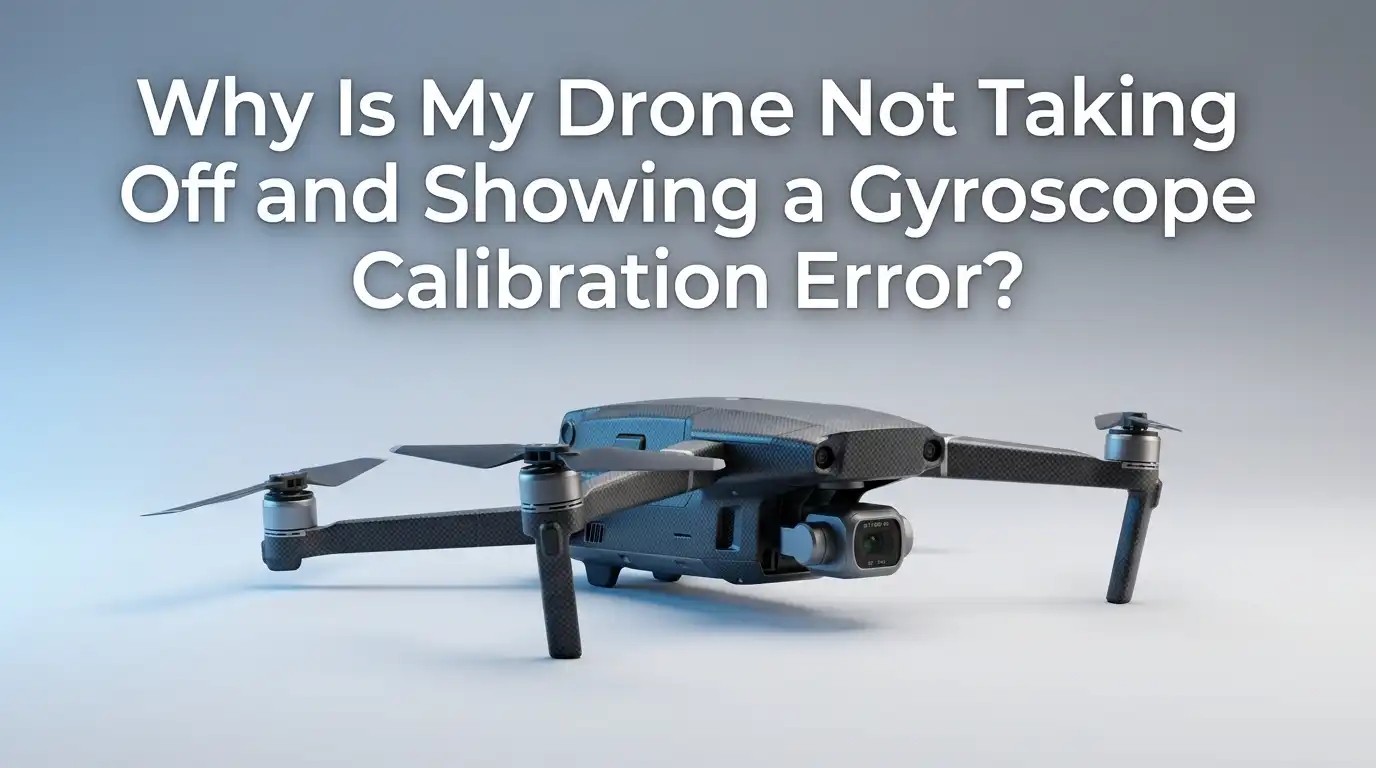
Why Is My Drone Not Taking Off and Showing a Gyroscope Calibration Error?
Your drone sits on the ground. You push the throttle. Nothing happens. Instead, a red warning flashes on your screen: Gyroscope Calibration Error.
That moment feels frustrating, especially when you planned a perfect flight. The good news is that this issue is one of the most common problems pilots face, and most of the time you can fix it yourself in minutes.
This guide walks you through every reason your drone refuses to lift off due to a gyro error. You will learn what the gyroscope does, why it fails, and how to calibrate it correctly. Each fix includes clear steps so you can get back in the air quickly.
Key Takeaways
- The gyroscope is the brain of stability. It tells the flight controller how the drone is tilting and rotating in real time. If it fails, the drone refuses to take off as a safety measure.
- Most gyro errors come from simple causes. Uneven surfaces, cold temperatures, magnetic interference, or outdated firmware trigger the warning more often than actual hardware damage.
- Calibration must happen on a flat, level, non metallic surface. Tables made of wood, cardboard boxes, or flat ground away from cars and speakers work best.
- Restarting the drone fixes many soft errors. A clean power cycle clears temporary sensor glitches in seconds.
- Firmware updates matter. Manufacturers like DJI, Autel, and Yuneec push fixes for IMU bugs regularly, so keeping software current solves many recurring problems.
- Hardware damage is the last suspect. If calibration fails after every method, the sensor or board may need professional repair or replacement.
What a Drone Gyroscope Actually Does
The gyroscope is a small sensor inside your drone that measures rotation and angular velocity. It works alongside the accelerometer as part of a unit called the IMU, which stands for Inertial Measurement Unit. Together, these parts tell the flight controller how the drone is oriented in space.
When you tilt the controller stick, the gyro confirms how fast the drone is rotating on each axis. The flight controller then adjusts motor speeds to match your command. Without accurate gyro data, the drone cannot balance itself, so it refuses to launch.
Think of the gyro as your drone’s inner ear. If your inner ear fails, you cannot walk straight. The same logic applies here. A failed calibration means the drone does not trust its own sense of balance.
Common Reasons Your Drone Shows a Gyroscope Calibration Error
Several factors cause this error message. The most frequent ones include an uneven launch surface, sudden temperature changes, magnetic fields nearby, outdated firmware, software glitches, and physical damage. Each cause leads to the same result, which is a drone that will not take off.
Sometimes the issue is even simpler. A loose internal cable or moisture inside the body can also trigger the warning. New pilots often unbox a drone and try to fly without running an initial calibration, which is another common trigger.
Identifying the right cause saves time. Start with the easy fixes before opening anything up. In most cases, you do not need tools. You only need a flat surface, a few minutes, and patience.
Step One: Restart the Drone and Controller
Before doing anything technical, try a full power cycle. Turn off the drone. Turn off the controller. Wait at least 30 seconds. Then power them back on in the correct order, which is usually controller first, then drone.
This basic step clears temporary memory errors. The flight software reloads, and the sensors get a fresh reading. Many pilots report that the calibration warning disappears after a simple reboot.
Pros: Takes less than a minute. Requires no tools or technical skill. Fixes most soft errors instantly.
Cons: Does not solve hardware faults or firmware bugs. If the gyro chip itself is damaged, restarting will not help. You may need to repeat this step combined with other fixes.
Step Two: Place the Drone on a Flat, Level Surface
The gyro calibration process relies on a perfectly horizontal reference point. If you calibrate on a slope, the drone records that tilted angle as its new zero. This causes drift, crashes, and persistent errors.
Use a hard floor, a glass table, or a sturdy cardboard box placed on the ground. Avoid metal tables, washing machines, or anywhere near speakers. Metal surfaces interfere with the magnetometer that works with the IMU.
Place a small spirit level on top of the drone if you have one. The bubble should sit dead center. Even a tiny tilt can cause the calibration to fail repeatedly.
Pros: Free, quick, and very effective. Solves most repeat error messages.
Cons: Not always practical outdoors. Finding a truly level spot in the field can be hard. You may need to carry a small flat board for outdoor flights.
Step Three: Run the IMU and Gyro Calibration in the App
Most modern drones have a calibration tool inside their companion app. Open the app, connect the drone, and find the sensor settings or device status section. You should see options for IMU, gyro, and compass calibration.
Follow the on screen prompts carefully. The drone usually asks you to lay it flat first, then on its left side, then right, then nose down and nose up. Wait for the green checkmark after each step. Do not rush.
The full process takes around three to five minutes. Keep the drone still during each phase. Any vibration restarts the step.
Pros: Designed by the manufacturer for accuracy. Walks you through each angle clearly.
Cons: Can take several attempts on cold days. Some older drones lack a built in calibration tool and need a computer connection instead.
Step Four: Check the Temperature Before Calibrating
Gyroscopes are temperature sensitive. A cold drone gives different readings than a warm one. If you stored your drone in a cold garage and tried to fly it in a warm room, the sensors may report mismatched data.
Let the drone warm up for at least 10 to 20 minutes after powering it on. This stabilizes the internal temperature. Some flight controllers, like those running ArduPilot, even support temperature calibration across a range of conditions.
Avoid flying right after taking the drone out of a hot car or a freezing field. Give it time to adjust to room temperature first.
Pros: Removes one of the most overlooked causes of repeat errors. Improves flight stability long term.
Cons: Requires patience. You cannot just unbox and fly in extreme weather. Outdoor pilots in winter need to plan ahead.
Step Five: Update the Firmware
Manufacturers release firmware patches to fix sensor bugs. An outdated firmware version can cause the gyro calibration to fail even on a healthy drone. This is especially true for DJI, Autel, Parrot, and Yuneec models.
Open the official app, go to settings, and check for updates. Always update both the drone and the controller. Mismatched versions sometimes cause IMU communication errors. Keep the battery above 50 percent during updates.
After updating, restart everything and run the calibration again. Many pilots find the warning disappears completely after a fresh firmware install.
Pros: Solves bugs the manufacturer already identified. Often improves overall performance.
Cons: Updates take 10 to 30 minutes. A failed update can brick the drone, so never disconnect mid process. Some updates introduce new issues until a follow up patch arrives.
Step Six: Move Away From Magnetic and Electronic Interference
Your drone’s IMU works closely with the compass and magnetometer. Strong magnetic fields confuse these sensors and trigger calibration errors. Sources include power lines, large speakers, car engines, rebar in concrete, and even smartphones placed too close.
Move at least three meters away from any metal structure or electronic device. Remove magnetic phone cases or keychains from your pockets. Never calibrate inside a parked car or on a steel balcony.
If you fly near buildings, try moving to an open field. The error often clears within seconds once the interference is gone.
Pros: Costs nothing. Improves flight safety in general.
Cons: Hard to detect interference without testing. City environments make this fix difficult. You may need to drive to a quieter area.
Step Seven: Inspect the Drone for Physical Damage
A hard landing or crash can knock the IMU board loose. Even a small bump can shift the sensor position by a fraction of a millimeter, which is enough to cause errors. Look for cracks, loose screws, or bent arms.
Open the body only if you feel confident and know the warranty terms. Check that the flight controller board sits firmly in place. Loose ribbon cables are a common cause of repeat gyro failures after crashes.
If you spot damage, stop and consider professional repair. Forcing flight with a damaged IMU can cause crashes and injuries.
Pros: Identifies serious issues before they cause accidents. Saves you from buying a new drone if the fix is small.
Cons: Opening the drone voids most warranties. Requires some technical skill and small tools like Phillips screwdrivers.
Step Eight: Reset the Drone to Factory Settings
If nothing else works, a factory reset can clear corrupted calibration data. This wipes saved settings and restores the drone to its original state. You will need to redo all bindings and calibrations afterward.
Find the reset option inside the app under advanced settings, or use the manufacturer’s desktop assistant software. Back up your flight logs first if they matter to you. A reset deletes them.
After the reset, run a fresh IMU, gyro, and compass calibration in order. This often fixes deep software glitches that survive normal reboots.
Pros: Clears all corrupted data. Often works when every other method fails.
Cons: Time consuming. You lose all custom settings and saved flight modes. The drone behaves like a brand new unit, so you need to set it up again.
Step Nine: Try a Different App Version or Device
Sometimes the problem is not the drone but the app on your phone. A buggy app update can misread sensor data and show false calibration errors. Try uninstalling and reinstalling the app, or use a different phone or tablet.
If you use an Android device, test with an iOS device or vice versa. Some pilots find that one operating system handles their drone better than the other. Check the app store reviews for recent complaints about bugs.
Also check that your phone has enough free storage. Low memory causes apps to crash mid calibration.
Pros: Quick to test. Reveals software issues unrelated to the drone itself.
Cons: Requires access to a second device. Reinstalling the app means logging back in and re pairing the drone.
Step Ten: Contact the Manufacturer or a Repair Service
If you have tried every step and the gyro error remains, the hardware itself may be faulty. Modern IMU chips are tiny and sensitive. Manufacturing defects, water damage, or component failure can all cause permanent issues.
Contact the manufacturer’s support team first. If your drone is under warranty, repairs are often free. Keep your receipt and serial number ready. Out of warranty repairs vary in cost, so get a quote before agreeing.
For older or budget drones, replacement may be cheaper than repair. Weigh the cost carefully.
Pros: Professional diagnosis confirms the real issue. Warranty repairs save money.
Cons: Repair times can stretch to several weeks. Shipping costs add up. Some third party repair shops do quality work for less but void official warranties.
How to Prevent Gyroscope Errors in the Future
Prevention beats repair. Always calibrate your drone after firmware updates, long storage, or temperature changes. Make it part of your pre flight checklist.
Store the drone in a stable temperature environment. Avoid leaving it in hot cars or freezing sheds. Use a padded case to protect the IMU from bumps during transport.
Update firmware regularly but only when you have time to complete the process safely. Calibrate on a flat surface every few flights, especially before important shoots. These small habits reduce gyro errors dramatically over the life of your drone.
Frequently Asked Questions
How long does a drone gyroscope calibration take?
A full IMU and gyro calibration usually takes between three and five minutes. The drone needs to sit still in several positions during the process. Cold temperatures or repeated failures can extend the time.
Can I calibrate my drone indoors?
Yes, you can calibrate indoors as long as the surface is flat and free from metal or magnetic interference. Stay away from speakers, microwaves, and steel furniture. A cardboard box on the floor works well.
Why does my drone keep asking for gyro calibration?
Repeated calibration requests often point to firmware bugs, a faulty sensor, or storage of corrupted data. Try a factory reset and firmware update first. If the issue continues, the IMU hardware may need repair.
Is it safe to fly a drone with a gyro warning?
No, never ignore a gyro warning. The drone may flip, drift, or crash without stable sensor data. Always fix the calibration error before takeoff to protect the drone and people nearby.
Does cold weather cause gyroscope errors?
Yes, cold temperatures change how the gyro chip behaves. Let the drone warm up for 10 to 20 minutes before flying in cold conditions. Some advanced flight controllers also support temperature calibration for better accuracy.
Can a crash damage the gyroscope permanently?
A hard crash can dislodge or break the IMU board. Minor impacts may only need recalibration, but serious crashes often require board replacement. Inspect for visible damage after any rough landing.

Hi, I’m Sonny Dawson, the creator and voice behind ConvertResizeGen. 👋 I’m a passionate tech enthusiast who loves exploring the latest gadgets, devices, and electronics that shape the way we live and work. Through my website, I share honest, hands-on reviews of trending Amazon products to help you make smarter buying decisions.